WEBP PHOTOS. READY AS JPG.
Free WebP to JPG Converter
Turn WebP photos into widely supported JPG files. Choose the quality, keep or reduce dimensions, and download a batch ZIP — all in your browser.
100% free · No signup · No uploads
No file-size caps. No conversion quotas. Actual capacity depends on your device’s memory and browser. Large batches are processed one image at a time.
01 / YOUR IMAGES
Bring your images.
Drop images here
or choose multiple files from your device
WebP · JPG output · Default quality: 90%
Files are processed only in your browser — nothing is uploaded.
Adding more images resets previous results. Originals stay untouched.
Static JPG output only. Animated WebP becomes its first frame. Camera metadata is not copied. Color appearance may differ.
02 / YOUR RESULTS
Ready when you are.
Your images stay here.
Choose your files, adjust the settings, then start. Previews, file sizes, and downloads will appear here.
100% free · No signup · No uploadsTotals compare successful files only. Savings are not guaranteed.
ZIP includes successful conversions only. Very large archives may exceed ZIP or device limits; individual downloads remain available.
SEE THE OUTPUT
A real conversion, side by side.
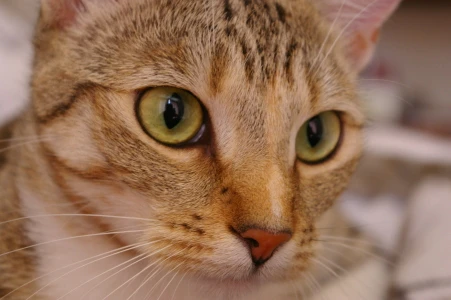

An opaque WebP photo and its actual browser-generated JPG at 90% quality, with the original dimensions. File size and appearance vary; converting to JPG can make a file larger.
THREE SIMPLE STEPS
A lighter workflow.
Choose your WebPs.
Drop one or many WebP files, or choose them from your device. The tool checks the file contents before conversion.
Set JPG quality.
Start at the default 90%, or try 80–90 for photos. Keep dimensions at 100% to avoid resizing; transparent areas become white.
Save your JPGs.
Compare the actual sizes, then download individual .jpg files or a ZIP containing successful results.
WHY PICUPLIFT
A quick comparison.
| Feature | PicUplift | Typical online converters |
|---|---|---|
| No signup needed | ✓ | ✗ |
| No file-size or count limits | ✓ | ✗ |
| Files never leave your device | ✓ | ✗ |
| Camera metadata stripped | ✓ | — |
| Free forever, no watermark | ✓ | ✗ |
Swipe or scroll sideways to see all columns.
GOOD TO KNOW
A few clear answers.
What happens to transparent areas?
Transparent areas become white. JPG does not support transparency, so the tool fills a white background before encoding. Use WebP to PNG if you need to keep transparency.
What JPG quality should I choose?
90% is the default. For photos, 80–90 is a useful starting point; inspect the result before choosing. Lower values can reduce file size and detail. The slider is an encoder setting, not a promise of visual quality or a target size.
Will the JPG be smaller than my WebP?
Not always. WebP can store photos efficiently, and its JPG conversion may be larger. Compare the real output size. Lowering quality or dimensions can help, but neither guarantees a particular file size.
Can I convert animated WebP?
Yes, but only its first frame becomes a static JPG. The result row shows a static-output note. Animation and frame timing are not preserved.
Are there uploads or batch limits?
Files are processed only in your browser — nothing is uploaded. There is no signup or imposed conversion quota. Files run one at a time; device memory and ZIP format limits still apply. We use Google Analytics to measure visits and interactions, never to receive your images.
Are the original images or camera metadata changed?
Your original files are untouched. The JPG does not copy the original camera metadata, and color appearance may differ. Keep your originals and confirm you have permission to use the images.