GUIDE · WEBP TO JPG
How to Convert WebP to JPG
WebP is Google's image format, and it is good at its job: a WebP photo is often smaller than a JPG at a similar visual quality. Current versions of the major browsers support WebP, which makes it useful for websites and everyday browsing. So why would you convert WebP to JPG?
Compatibility. Some older desktop apps, website upload forms, email workflows and print services still expect JPG. JPG has been widely used for photos for decades. Converting WebP to JPG can help you meet those requirements, but it is not a reliable way to make a file smaller. At a similar visual quality, the JPG may take more space than the WebP you started with.
There is one important limit to know before you start: JPG does not support transparency. A transparent WebP needs a solid background when exported as JPG. PicUplift chooses white for that background; JPEG itself does not require white. If transparency matters, keep an alpha-capable format and use the WebP to PNG converter instead.
JPG and JPEG refer to the same image format. The shorter .jpg extension became common because older systems restricted filename extensions. A .jpg file and a .jpeg file can contain the same kind of JPEG image. Most services accept either extension, although an individual upload form may impose its own filename rules.
Here are three free ways to convert WebP to JPG without an account or uploading your photos to a conversion server. Keep the original WebP files so you can compare results and export again if needed.
Method 1: Convert in your browser (batch, quality control, ZIP downloads)
For a batch or a workflow across Windows, Mac and Linux, open PicUplift's WebP to JPG converter. It decodes supported WebP images with your browser and creates JPG files on your device. Your image files are not uploaded to a server. Use a current browser with WebP decoding and JPEG export support.
- Open the converter in a current Chrome, Edge, Safari or Firefox. If a particular file fails, try a smaller image or another current browser; supported files and available memory can vary.
- Drag in your .webp files or click Choose images. You can select a batch rather than opening every photo separately. Leave Image dimensions at 100% if you want to keep the original pixel dimensions.
- Set the quality. The default is 90, and 80–90 is a useful starting range for balancing photo quality and file size. Inspect your own output before choosing a lower or higher setting. Fine textures, sharp edges and smooth skies can reveal compression differently, and the same quality number can behave differently across encoders. A setting of 100 still uses lossy JPEG encoding.
- Click Start conversion. PicUplift fills transparent areas with white before encoding the JPG. This white background is the converter's choice; JPG requires an opaque result but does not prescribe a particular background color.
- Download each successful JPG individually or use Download ZIP to save the batch together. Open an output file and check its appearance and size before sharing it.
There is no signup, watermark, daily quota or imposed conversion-count cap. PicUplift processes images one at a time. Actual capacity depends on your device's memory, image dimensions, browser support and ZIP capacity. Split very large folders into smaller batches if the page slows down or a file fails. The originals stay unchanged.
If the JPG files are larger than the WebP originals, that can be normal: WebP often compresses photos more efficiently at a similar visual quality. Compare the actual sizes rather than assuming a fixed ratio. If file size matters more than a JPG requirement, keep the WebP, adjust the JPG quality, or try the image compressor afterwards. Check the compressor's output format and the resulting size before downloading.
If your photos are HEIC rather than WebP, use the HEIC to JPG converter instead. iPhones can save photos as HEIC depending on their camera settings. The converter interface is similar, but HEIC needs a different decoder.
A real WebP to JPG conversion
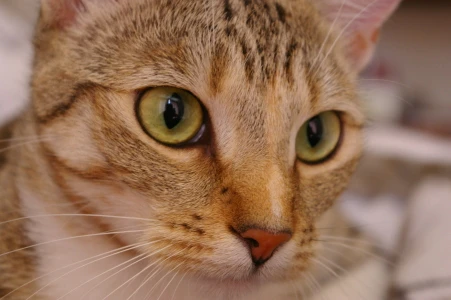

The same opaque photograph is shown before and after browser conversion. The JPG uses quality 90 at the original dimensions. This example lets you compare one actual result; file size and visible changes depend on the source image and browser. It does not demonstrate transparency handling.
Method 2: Use Preview on Mac (built in, including batch export)
On a Mac where Preview can open your WebP files, you can export one or several as JPEG without installing another app. File support and menu wording depend on your macOS version. For batch export, keep the images together in one Preview window and select the thumbnails you want to convert.
- In Finder, select the WebP photos you want to convert. In a folder containing only those photos, press ⌘A to select them all.
- Right-click the selection and choose Open With → Preview. Keep the images together in one Preview window.
- Click an image in Preview's thumbnail sidebar, then press ⌘A to select all the images. If the sidebar is hidden, choose View → Thumbnails first.
- Choose File → Export Selected Images. The wording of the export command may vary with the version and current selection.
- Choose a destination folder, open Options if shown, set Format to JPEG and adjust the Quality slider. Preview's slider is not necessarily on the same scale as a browser converter, so judge the exported image rather than transferring a quality number between apps.
- Click Choose or Save, depending on your macOS version, to export the selected images. Keep the original WebP files until you have checked the JPEGs.
For just one photo, use File → Export, choose JPEG and set the quality before saving. If the format you need is hidden, hold Option while opening the Format menu to see additional choices.
For a large folder, begin with a small test batch and increase it only if the export runs smoothly. There is no universal safe photo count: stability depends on your macOS version, image dimensions and available memory. If Preview slows down or an export fails, reduce the batch.
JPEG cannot retain transparent areas. Check how Preview flattens your particular image instead of assuming it always uses a white background. If transparency must survive, export as PNG rather than JPEG.
If Preview cannot open the WebP, try Method 1 in a current browser that supports your Mac. A browser converter still depends on browser and operating-system support; it is not guaranteed to work on every old macOS version.
Method 3: Use Paint on Windows 11 (built in, one photo at a time)
Paint can save an image it successfully opens as JPEG. For an occasional WebP photo, first check that your installed Windows 11 and Paint versions can open the file. If the file is unsupported, use Method 1 in a current browser. This method handles one image per save.
- Right-click a WebP photo and choose Open with → Paint. For several photos, open and save them individually.
- Choose File → Save as → JPEG picture, or select JPEG in the save dialog if your version uses different wording.
- Choose a destination folder and click Save. Open the saved JPG to check its appearance before uploading or printing it.
Paint's usual JPEG save flow offers fewer quality controls than the browser converter. If your version does not show a quality control, use Method 1 when you need to choose a quality value. Batch conversion and ZIP downloads also avoid repeating the save steps for every photo.
The saved JPG will be opaque. Check the exported background if your WebP contains transparency; its appearance depends on the app and image. To retain transparency, choose PNG instead of JPEG and check the result, or use the WebP to PNG converter linked above.
Which method should you pick?
- Dozens or hundreds of WebP photos, quality control, ZIP downloads, or a cross-platform workflow → Method 1. Batch capacity still depends on your device and browser.
- A few supported WebP photos on a Mac → Method 2. Preview is already installed, and batch export is available too.
- One or two WebP photos that open in Paint on Windows 11 → Method 3. Save and check each image individually.
- Transparency must survive → Use the linked WebP to PNG converter. JPG cannot store transparent pixels.
- Smaller sharing files matter most → Keep WebP if the receiving service supports it, or adjust and compress the JPG. Changing to JPG does not guarantee a smaller file.
FAQ
Will converting WebP to JPG lose quality?
Yes, JPG adds lossy compression to the decoded image. A quality setting around 80–90 is a starting point, not a guarantee that changes will be invisible. Results depend on image content and the browser's encoder. Compare the output, use a higher setting when needed, and keep the original WebP for future exports. JPEG encoding cannot restore detail already lost in the source.
What happens to the transparent parts of my image?
PicUplift turns transparent areas into a white background. JPG has no alpha channel, so its pixels must be opaque; white is PicUplift's chosen fill rather than a requirement of JPEG. Other apps may flatten the image differently. If transparency matters, convert to PNG instead and check that the output keeps it.
Why is my JPG bigger than the original WebP?
A JPG can be bigger because WebP often compresses photos more efficiently at a similar visual quality. There is no fixed size ratio for every image. Try lowering the JPG quality slightly, or use an image compressor afterwards and check its output format. Compare the actual results rather than assuming that changing formats will save space.
Is it safe to use an online converter for personal photos?
PicUplift processes personal photos locally in your browser without uploading the image files. Other converters may upload files, so check their policies before choosing one. For offline use, download the complete website folder, keep its assets and licenses, and open webp-to-jpg.html in a current desktop Chrome or Edge. We use Google Analytics to measure visits and interactions such as page views, scrolling and clicks. Images are always processed locally and are never uploaded.
Can I convert WebP to JPG on my phone?
Yes, you can convert WebP to JPG in a supported mobile browser. Try current Safari on iPhone or Chrome on Android; available memory, file support and download behavior vary by device. Start with a small batch and use the file picker if dragging is inconvenient. The same local image processing applies. Some phones also offer native image export options, depending on the operating system and installed apps.