GUIDE · GIF TO JPG ON IPHONE
How to Convert a GIF to JPG on iPhone
Convert a GIF to JPG on iPhone three free ways: a browser converter, the Shortcuts app, or a screenshot in Photos. For the exact frame you want, or a batch of GIFs, use the browser converter. For one GIF already in Photos, Shortcuts or a screenshot is already on your phone. JPG has no transparency — transparent areas become white, so use GIF to PNG if you need it kept.
GIFs arrive on an iPhone from everywhere: Messages, Safari, social apps, and group chats. A GIF is a moving image, and many places that accept photos do not accept it — an upload form that wants a JPG, a print service, an editing app that only opens still images. Converting the GIF to a JPG gives you one still frame in a format almost everything accepts.
A JPG holds one still image and no animation. Converting a GIF to JPG means choosing one frame and discarding the rest — usually the first frame. The file extension changes from .gif to .jpg, and the moving image becomes a photo you can upload, print, or edit like any other.
There is one important limit to know before you start: JPG does not support transparency. A transparent GIF needs a solid background when exported as JPG. PicUplift chooses white for that background; JPEG itself does not require white. If transparency matters, keep an alpha-capable format and use the GIF to PNG converter instead.
GIF and JPG are built for different jobs. GIF stores up to 256 colors and can hold many frames, which makes it good for simple animations, stickers, and logos. JPG stores millions of colors in one still photo, which makes it good for photographs. A photo-like GIF converted to JPG can look fine; a flat-color GIF converted to JPG can end up larger than the GIF you started with.
Here are three free ways to convert a GIF to JPG on your iPhone without an account or uploading your photos to a conversion server. Keep the original GIF files so you can compare results and export again if needed.
Method 1: Convert in your browser (batch, quality control, ZIP downloads)
For a batch or the exact first frame, open PicUplift's GIF to JPG converter in Safari. It decodes the GIF with your browser and creates JPG files on your device. Your image files are not uploaded to a server. Use a current Safari or Chrome on iOS.
- Open the converter in Safari on your iPhone. If a particular file fails, try a smaller GIF or Chrome on iOS; supported files and available memory can vary.
- Tap Choose images and pick your GIFs from Photos or Files. You can select several at once. Leave Image dimensions at 100% if you want to keep the original pixel dimensions.
- Set the quality. The default is 90, and 80–90 is a useful starting range for balancing photo quality and file size. The converter takes the first frame of each GIF.
- Tap Start conversion. PicUplift fills transparent areas with white before encoding the JPG. This white background is the converter's choice; JPG requires an opaque result but does not prescribe a particular background color.
- Download each successful JPG individually or use Download ZIP to save the batch together. On iPhone, Safari saves downloads to Files — open the Files app to find them. Open an output file and check its appearance and size before sharing it.
There is no signup, watermark, daily quota or imposed conversion-count cap. PicUplift processes images one at a time. Actual capacity depends on your device's memory, image dimensions, browser support and ZIP capacity. Split very large folders into smaller batches if the page slows down or a file fails. The originals stay unchanged.
If the JPG files are larger than the GIF originals, that can be normal: a simple GIF with few colors is already tiny, and JPG stores millions of colors. Compare the actual sizes rather than assuming a fixed ratio. If file size matters more than a JPG requirement, keep the GIF, adjust the JPG quality, or try the image compressor afterwards. Check the compressor's output format and the resulting size before downloading.
If you need a later frame rather than the first one, use Method 3 below — the browser converter always takes the first frame.
A real GIF to JPG conversion on iPhone
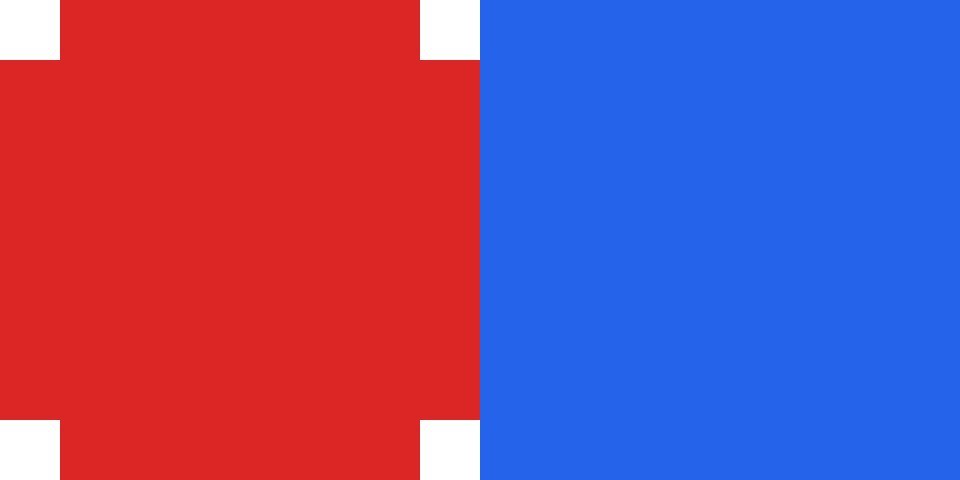
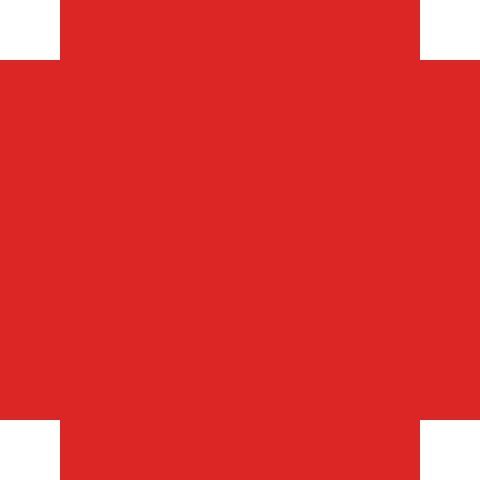
The GIF is the two-frame sample used by the converter: a red frame with transparent corners, then a blue frame. The JPG shows the first frame only, with the transparent corners filled white. The JPG uses quality 90 at the original dimensions. File size and visible changes depend on the source GIF.
Method 2: Use Shortcuts on iPhone (built in, one GIF at a time)
Shortcuts is already on your iPhone. You build a small shortcut once, then run it from the share sheet in Photos. Menu wording depends on your iOS version.
- Open the Shortcuts app and tap + to create a new shortcut.
- Tap Add Action, search for "Convert Image", and add it. Set the format to JPEG.
- Add a second action: search for "Save to Photo Album" and add it below Convert Image.
- Name the shortcut "GIF to JPG", then open Photos, select a GIF, tap Share, and run the shortcut. The JPEG is saved to your photo library.
To convert another GIF later, select it in Photos and run the same shortcut from the share sheet — you only build it once.
Shortcuts handles one GIF per run. For a batch, use Method 1.
The JPEG is opaque. Transparent areas become white. If transparency must survive, use the GIF to PNG converter instead.
If the shortcut does not appear in the share sheet, open the Shortcuts app, open the shortcut's settings, and check that "Show in Share Sheet" is on. Menu wording depends on your iOS version.
Method 3: Take a screenshot in Photos (built in, any frame you can catch)
If you want a frame that is not the first one, a screenshot catches whichever frame is on screen when you press the buttons. No app to install, but the timing is yours to get right.
- Open the GIF in Photos and let it play until the frame you want is showing.
- Press the Side button and Volume Up together to take a screenshot.
- Open the screenshot, tap Edit, crop out the Photos interface, and tap Done. The screenshot is saved to your library.
A screenshot is saved as a PNG, which is usually larger than a JPG of the same image. If file size matters, use Method 1 and take the first frame as a JPG instead.
A screenshot is always opaque. What was transparent in the GIF becomes part of the screenshot background, so check the result before sharing it.
Which method should you pick?
- The first frame, a batch of GIFs, quality control, or ZIP downloads → Method 1. Batch capacity still depends on your device and browser.
- One GIF already in Photos and you want a JPEG in your library → Method 2. Build the shortcut once, reuse it.
- A frame that is not the first one → Method 3. Catch it on screen and crop the screenshot.
- Transparency must survive → Use the linked GIF to PNG converter. JPG cannot store transparent pixels.
- Smallest file matters most → Keep the GIF if the receiving service accepts it, or take the first frame as a JPG at a lower quality. Changing to JPG does not guarantee a smaller file.
FAQ
Can I convert a GIF to JPG in the Photos app itself?
No. Photos can open and play a GIF, but it has no export-to-JPG command for it. Use the browser converter, a Shortcuts shortcut, or a screenshot — the three methods on this page.
Which frame will I get?
Methods 1 and 2 give you the first frame — the animation and later frames are not kept. Only Method 3, the screenshot, can catch a later frame, and only the one showing when you press the buttons.
Why is my JPG bigger than the original GIF?
A simple GIF with few colors can be smaller than a JPG of the same image. JPG stores photos efficiently, but a flat-color GIF is already tiny. Try a lower quality, or keep the GIF if the service accepts it.
Is it safe to use an online converter for personal photos?
PicUplift processes personal photos locally in your browser without uploading the image files. Other converters may upload files, so check their policies before choosing one. For offline use, download the complete website folder, keep its assets and licenses, and open gif-to-jpg.html in a current desktop Chrome or Edge. We use Google Analytics to measure visits and interactions such as page views, scrolling and clicks. Images are always processed locally and are never uploaded.
Can I convert GIF to JPG on Android too?
Yes. Open the same browser converter in Chrome on Android and follow Method 1 — the steps are the same, and the file is still processed locally. Download behavior and the Files app vary by device; start with a small batch.