GUIDE · PHOTOS TO ANIMATED GIF
How to Turn Multiple Photos into an Animated GIF
Turn multiple photos into an animated GIF three free ways: a browser converter, the Shortcuts app on iPhone, or an image editor. For a quick GIF from JPGs with adjustable frame delay, use the browser converter. For a GIF from Live Photos, Shortcuts is already on your phone. GIF holds at most 256 colors, so photos can look flat.
An animated GIF is the simplest moving image to share: it loops forever, needs no player, and plays inline in messages, social feeds, and slide decks. A birthday sequence, a pet doing something silly, a before-and-after, or a few slides — a handful of photos in order becomes a small story that moves.
A GIF is a flip-book, not a video. Each photo becomes one frame, shown for the delay you set, then the next frame, then back to the start. There is no sound, no pause button, and no scrubbing — the delay decides the speed. Keep the original photos so you can reorder them or change the speed later.
There is one important limit to know before you start: a GIF holds at most 256 colors, so photos lose smooth gradients and can look flat or banded. Flat colors and strong shapes convert best. If a photo must keep every shade, keep it as a photo — or use the JPG to GIF converter and check the result before you share it.
A GIF plays its frames in a loop and has no sound. Unlike a video, you cannot pause or scrub it — the delay you set decides the speed. Most messaging apps, social feeds, and slide decks play GIFs inline, which is why a short looping GIF is still the easiest moving image to share.
Here are three free ways to turn multiple photos into an animated GIF without an account or uploading your photos to a conversion server. Keep the original photos so you can reorder them and export again if needed.
Method 1: Make the GIF in your browser (batch, frame delay, no install)
For a quick GIF from JPGs with a delay you choose, open PicUplift's JPG to GIF converter . It reads your photos with your browser and builds one GIF on your device. Your photo files are not uploaded to a server. Use a current Chrome, Edge, Safari, or Firefox.
- Open the converter in a current Chrome, Edge, Safari or Firefox. If a file fails, try a smaller photo or another current browser.
- Drag in your JPG photos or click Choose images. Add them in the order they should play — the first photo sets the frame size. Up to 30 photos per GIF.
- Set the frame delay. The default is 0.5 seconds per photo. Shorter delays make a faster animation; longer delays make it slower.
- Click Start conversion. Each photo becomes one frame, and the GIF loops forever.
- Download the GIF and check that it plays. The page shows the total size before you download.
There is no signup, watermark, daily quota or imposed conversion-count cap. One GIF holds up to 30 photos. Actual capacity depends on your device's memory, image dimensions, and browser support. Split longer sets into several GIFs if the page slows down or a file fails. The originals stay unchanged.
If the GIF is larger than the JPGs you started with, that can be normal: GIF is an old format and compresses photos poorly. Use fewer photos or smaller dimensions for a smaller GIF. A longer delay does not change the file size — only the frame count and dimensions do.
One photo makes a static GIF with a single frame. Add more photos to make it animated.
A real photo-to-GIF conversion
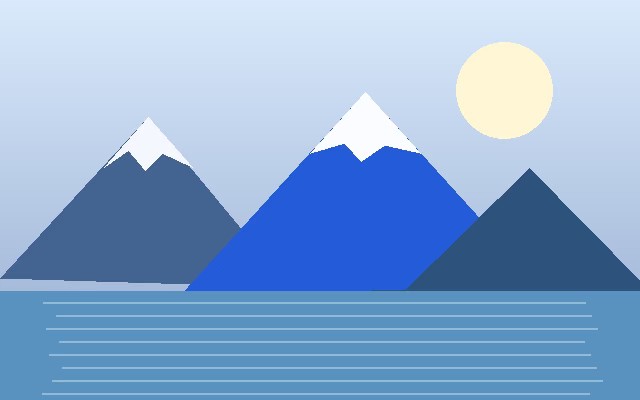
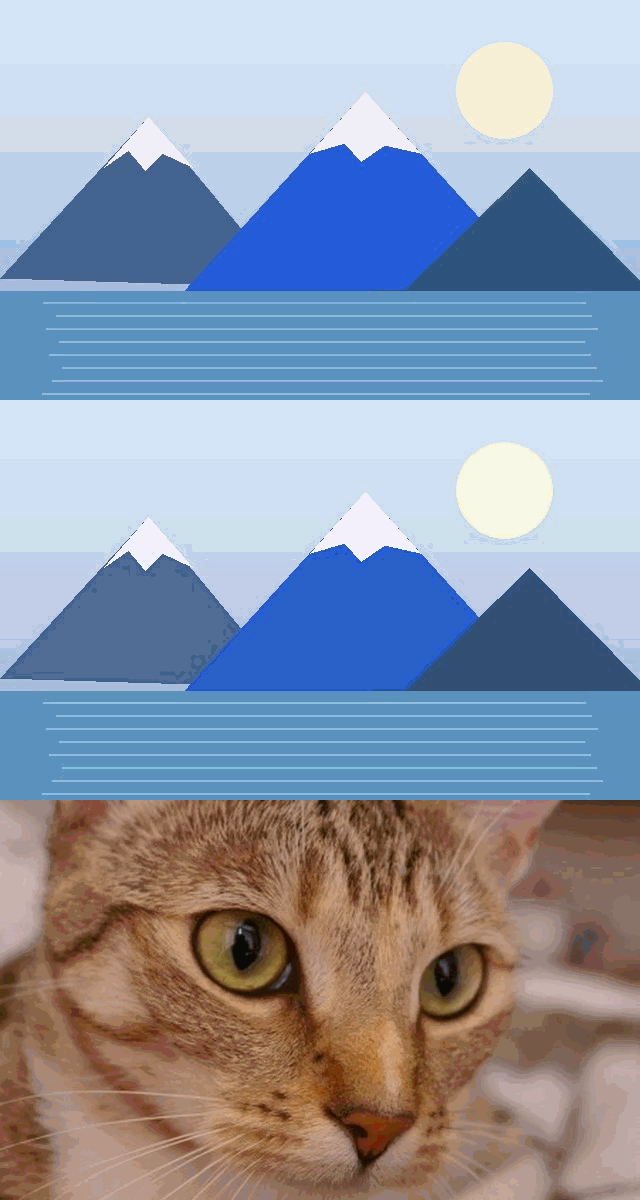
Three landscape photos become one looping GIF at 0.5 seconds per frame. The GIF is 640 × 400 pixels, set by the first photo; the other photos are center-cropped to fit. Photos are reduced to 256 colors, so smooth skies can look banded.
Method 2: Use Shortcuts on iPhone (built in, from Photos or Live Photos)
Shortcuts is already on your iPhone and has a "Make GIF" action. It is the fastest way to turn a few photos — or a Live Photo — into a GIF. Menu wording depends on your iOS version.
- Open the Shortcuts app and tap + to create a new shortcut.
- Tap Add Action, search for "Select Photos", and add it. Turn on Select Multiple so you can pick several photos.
- Add a second action: search for "Make GIF" and add it below Select Photos.
- Add a third action: search for "Save to Photo Album" and add it below Make GIF.
- Tap the shortcut in the Shortcuts app, pick your photos in order, and the GIF is saved to your photo library.
One photo makes a one-frame GIF. Add at least two photos for a visible animation.
Shortcuts makes one GIF per run. For many photos or a precise delay, use Method 1.
Shortcuts does not expose a frame-delay setting. If you need a specific speed, use Method 1 and set the delay there.
JPG photos have no transparency, so the GIF is fully opaque — the same as Method 1.
If "Make GIF" does not appear when you search, update Shortcuts from the App Store, or use Method 1 in a current browser.
Method 3: Use GIMP on desktop (free, full control)
GIMP is a free image editor for Windows, Mac, and Linux. It takes more steps than the browser converter, but you control each frame, the palette, and the delay.
- Open the first photo in GIMP with File → Open.
- Add the rest with File → Open as Layers, in the order they should play. Each photo becomes one layer, bottom to top.
- Choose Image → Mode → Indexed and set the maximum number of colors to 255. GIF needs one color reserved for transparency; 255 is the safe maximum.
- Choose File → Export As, name the file with a .gif extension, click Export, then tick "As animation" and set the delay between frames in milliseconds.
- Click Export and open the GIF to check that it loops and the speed feels right.
GIMP lets you resize layers and set the color count; fewer colors make a smaller file but flatter photos. Judge the exported GIF rather than the preview.
JPG photos have no transparency, so the GIF is fully opaque. GIMP can keep transparency only if the source layers have it.
Which method should you pick?
- A quick GIF from JPGs with a delay you choose → Method 1. Up to 30 photos per GIF.
- A GIF from photos or a Live Photo already on your iPhone → Method 2. No delay control, but nothing to install.
- Full control over frames, colors, and timing on desktop → Method 3. GIMP is free but takes more steps.
- A longer animation than 30 photos → Split the photos into several GIFs in Method 1, or build it in GIMP.
- A video with sound or scrubbing → Do not use a GIF. Export a video instead; a GIF loops silently and cannot be paused.
FAQ
How long should each frame show?
0.5 seconds per photo is a good starting point for a slideshow feel. For a flip-book effect, try 0.1–0.2 seconds. For readable text in a frame, try 1–2 seconds. The browser converter lets you set the delay from 0.1 to 2 seconds.
Why does my GIF look worse than my photos?
GIF holds at most 256 colors, so smooth gradients — skies, skin, shadows — lose detail and can look banded. Use photos with flat colors and strong shapes for the best result, and keep the originals for anything that needs full quality.
Can I add music or sound to a GIF?
No. GIF is an image format with no audio track. If you need sound, make a short video instead and share that.
Is it safe to use an online converter for personal photos?
PicUplift processes personal photos locally in your browser without uploading the image files. Other converters may upload files, so check their policies before choosing one. For offline use, download the complete website folder, keep its assets and licenses, and open jpg-to-gif.html in a current desktop Chrome or Edge. We use Google Analytics to measure visits and interactions such as page views, scrolling and clicks. Images are always processed locally and are never uploaded.
Can I turn a video into a GIF here?
No. This converter takes JPG photos, not video files. To make a GIF from a video, extract still frames from the video first — for example with a video editor or a screen recording — then add those frames as photos.